Kusuri Memo User Guide
1. Introduction
Kusuri Memo is a simple app that prevents you from forgetting to take your daily medications. Just press the "Drink!" button to record your medication, and you can check on your medication status even if your family is far away.
- Those who take medicine every day
- People who often forget whether they have taken their medicine or not
- Caregivers and family members who want to monitor the medication status of family members who live far away
- Nursing facility/home care team members who wish to check the medication status of users (operation with consent of the patient)
- Doctors and nurses who want to check patients' personal records at hospitals and clinics (operation with patient's consent)
- People who want to show what they have taken and when, like a medication notebook, when visiting the hospital
- People who want to record their supplements, herbal medicine, and tonpuku habits
- People who want to strictly manage their medication for a certain period of time after surgery or when starting a new treatment
Kusuri Memo isAvailable for free. In the free version, you can register up to one type of medicine. If you upgrade to the premium version, you can register any number of medicines, you will be able to use functions such as checking records for the past 90 days and sharing them with your family.
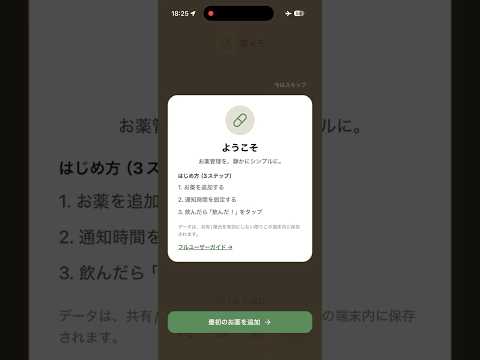
1.5 Quick Start Video
For first-time users, we introduce the process from setup to "drinking" record and log confirmation in 30 seconds.
2.Basic usage
- Tap "Settings" from the menu at the bottom of the screen.
- Tap the "Add Medication" button.
- Enter the drug name and tap the "Add" button. (e.g. blood pressure medication, morning tablets)
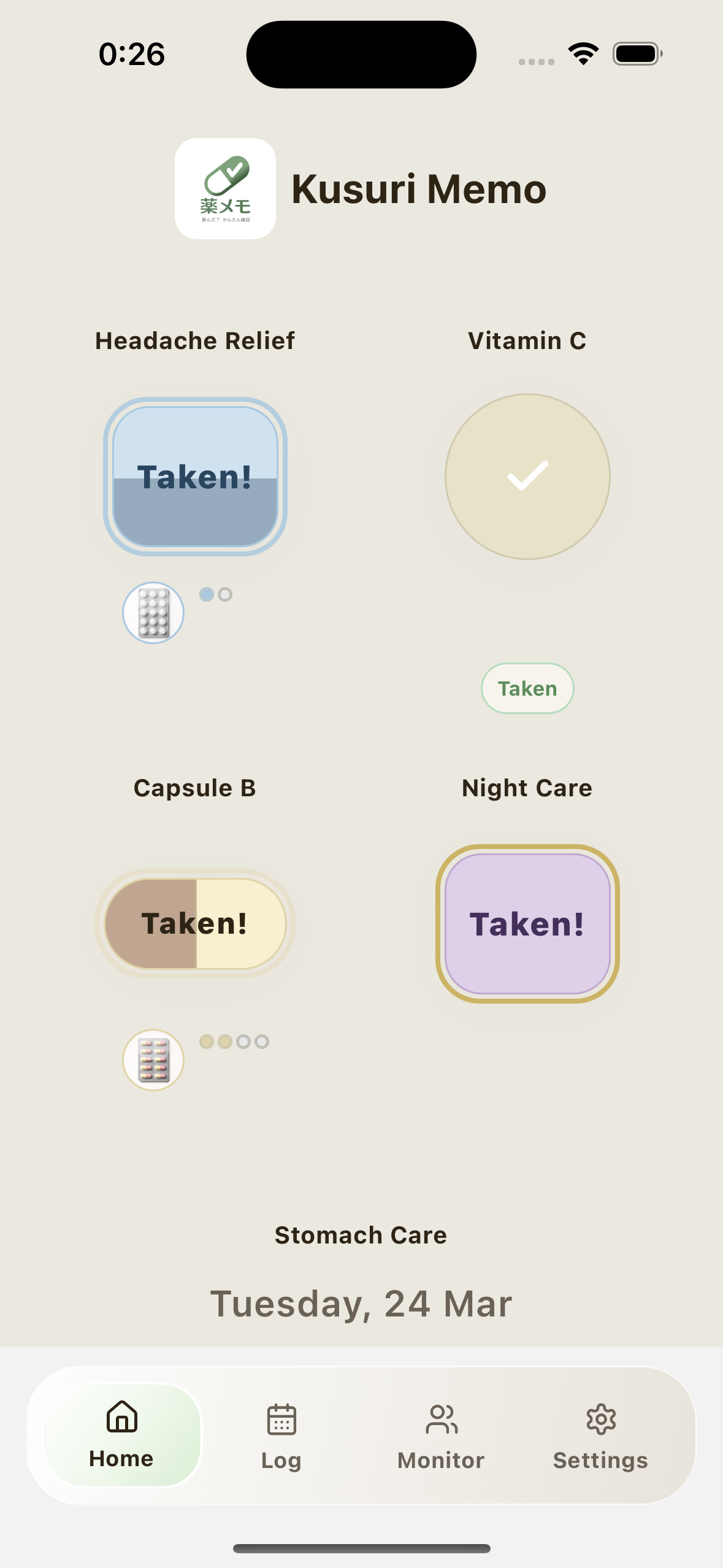
- When you return to the home screen, the button for the registered medicine will be displayed.
- Open the home screen.
- Tap the "I took it!" button with the name of the medicine written on it.
- A check mark (✓) will appear on the button and the time taken will be recorded.
- You can cancel your order within 30 minutes after pressing the "Drink!" button.
- Tap the "Cancel" button that appears below the button.
- The recording will be canceled and the button will return to its original state.
- Open the "Settings" tab and tap the name of the registered medicine to expand it.
- Turn on the "Notifications" switch.
- Enter the time you want to receive notifications in the "Notification time" field. (Example: 08:00)
- Your settings will be saved automatically.
3. Medicine photos
If you register a photo of your medication, a thumbnail will be displayed on the button on the home screen, allowing you to identify the medication at a glance.
- Open the Settings tab and tap the name of the medication you want to add a photo to to expand it.
- Under "Medicine Photo", tap "Take a photo" or "Select from library".
-
Take a photo:The camera will start. Please take a photo of the actual medicine.
*On Android, the screen display may differ depending on the model and camera app. The basic flow is "shoot → check → crop adjustment (for home screen preview)".
Choose from library:You can choose from photos saved on your smartphone. - Once the photo is saved, a preview will appear on the settings screen.
- When you register a photo, a small photo icon will be displayed on the top right of the "I drank!" button on the home screen.
- the photo iconlong pressThe photo will then be displayed larger.
- Close by tapping the screen or clicking the "X" button.
- Expand the medication details on the Settings tab.
- A preview of the currently registered photos will be displayed in the "Medicine Photos" section.
- You can replace photos with the "Shoot" and "Library" buttons, and delete photos with the "Delete" button.
4.Multiple doses
- Expand the medication details on the Settings tab.
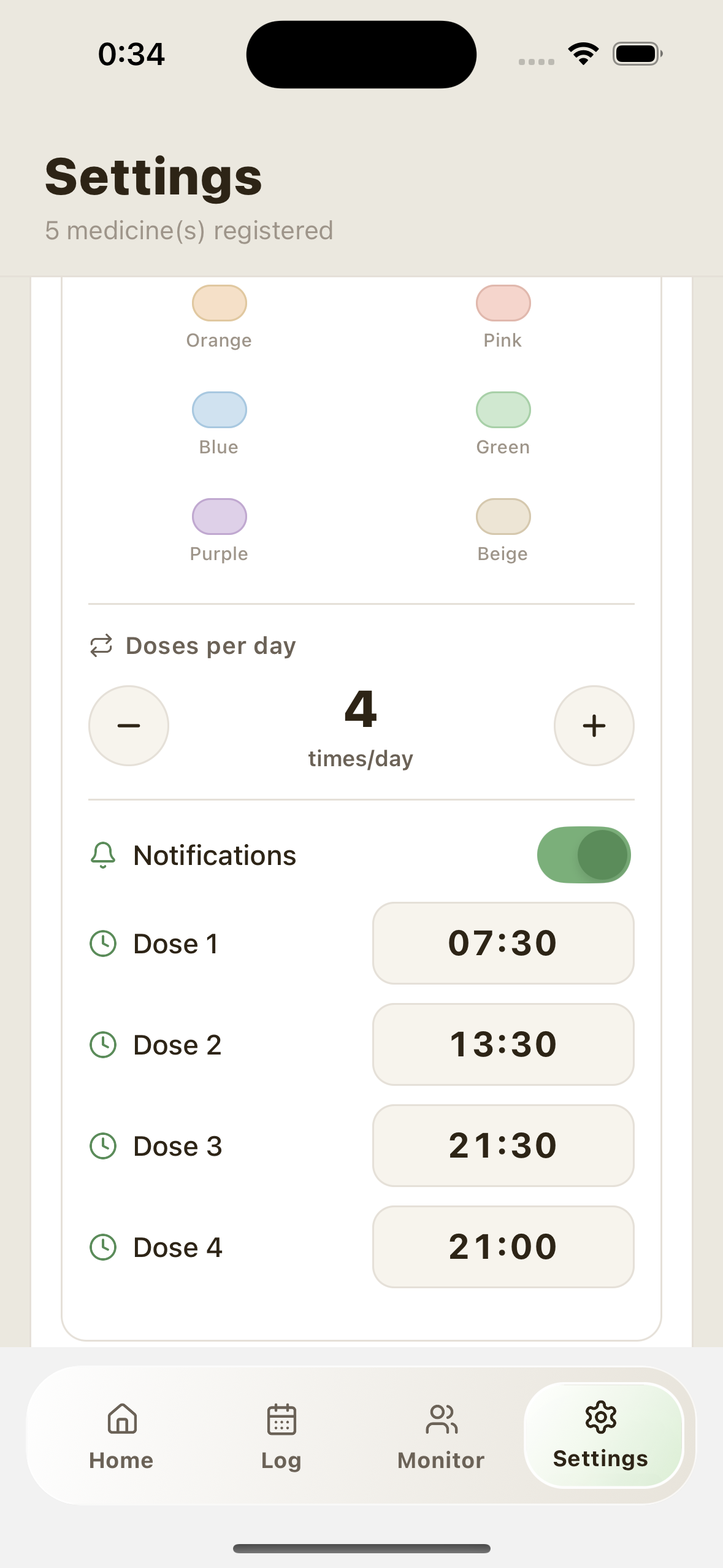
- Tap the "+" button in the "Number of doses per day" column to increase the number of doses. (Can be set from 1 to 12 times)
- Once you set the number of times, a field will appear where you can enter the time for each dose. Please enter the time.
Medications that are taken multiple times a day will have a small circle (dot) displayed below the button on the home screen.
- Number of dots = number of doses per day
- Colored dots = number of doses taken
- White dots = number of doses not yet taken
- When you tap the "Drinked!" button, one dose will be recorded.
- The dots will change color one by one.
- A check mark will appear on the button when you have taken all the doses.
5.Log
On the "Record" tab, you can check your past medication status by date.
- Tap the "Record" tab from the menu at the bottom of the screen.
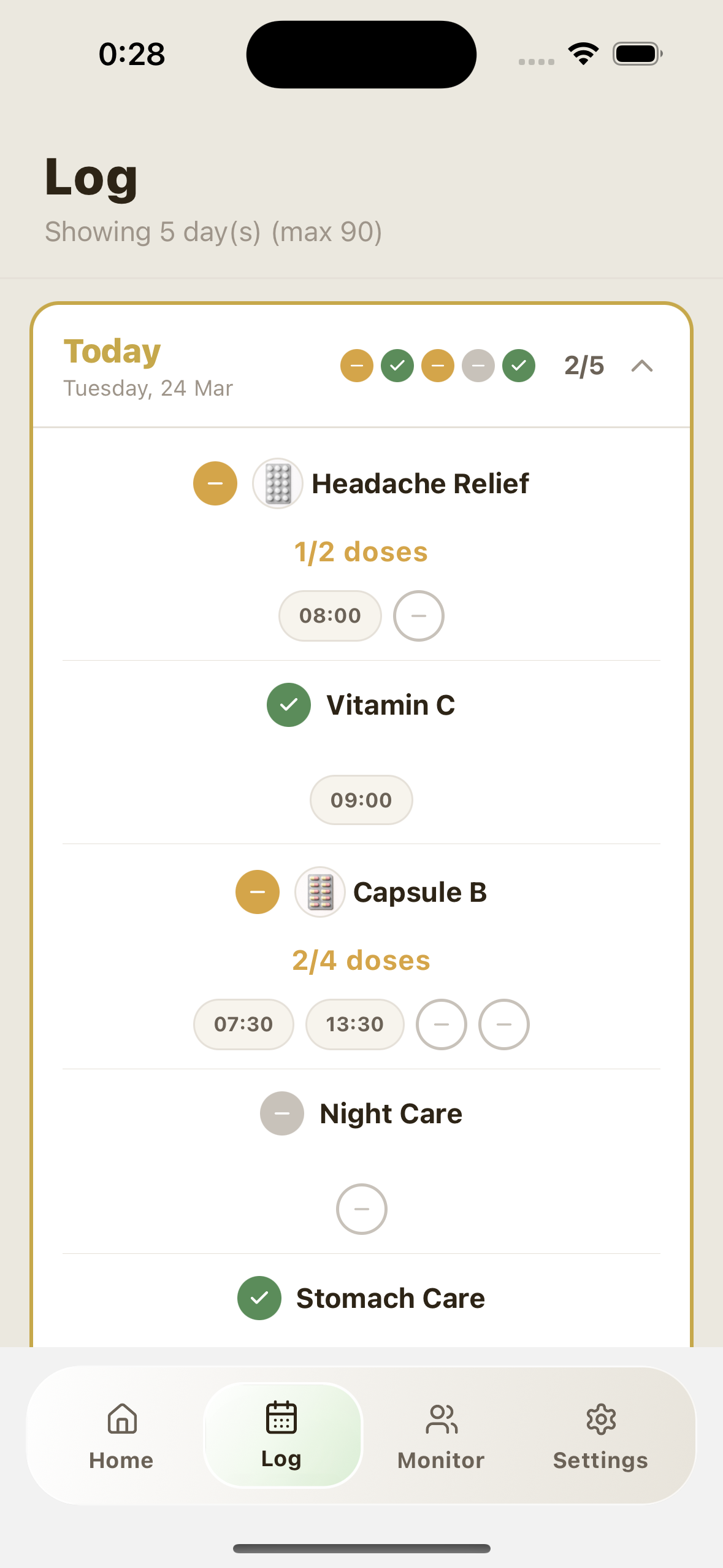
- A list of cards by date will be displayed. Today's card is prominently displayed with a gold border.
- When you tap the card, the details for that day (the status and times of each medication) will be displayed.
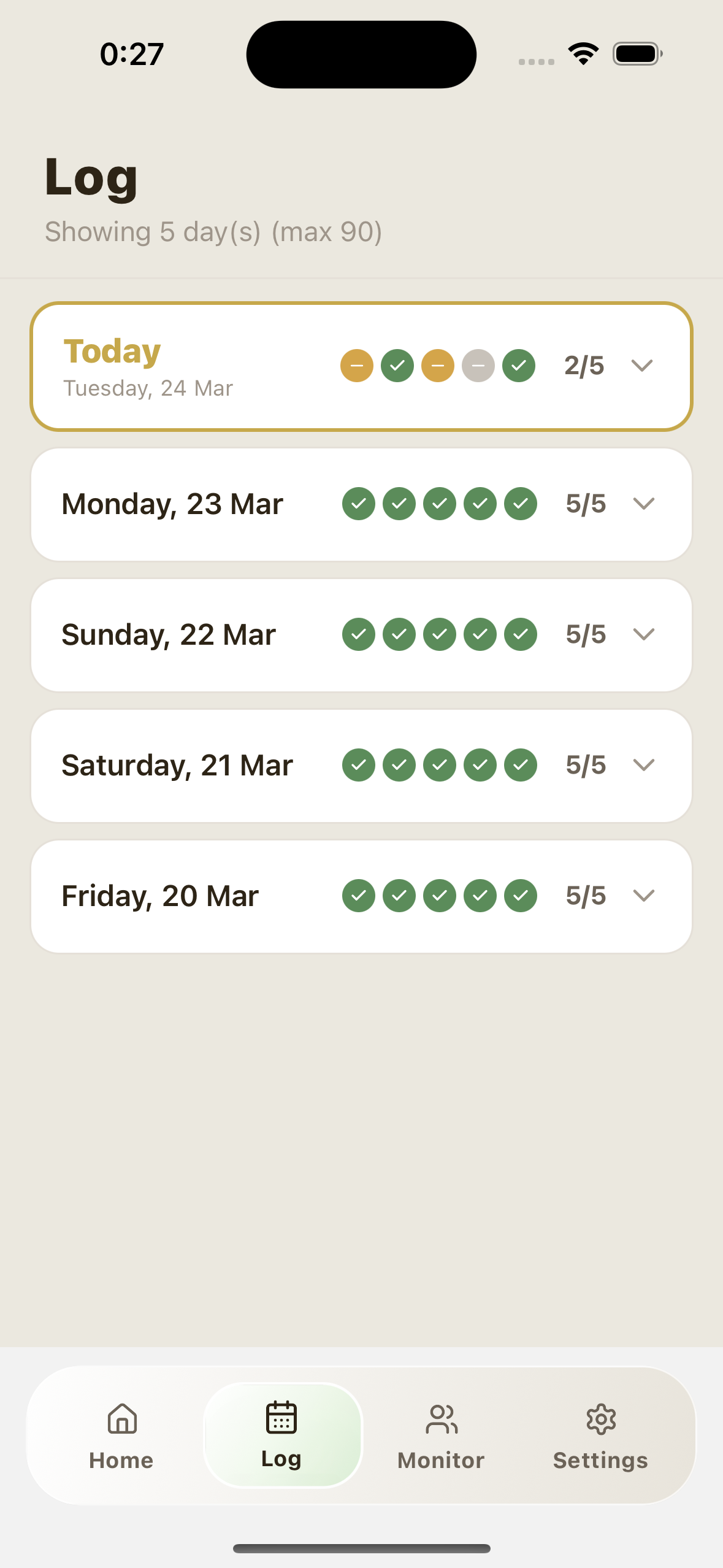
When you unfold the card, it will show you what time and minute you took your dose. If you have taken multiple doses, the times for each dose will be displayed side by side.
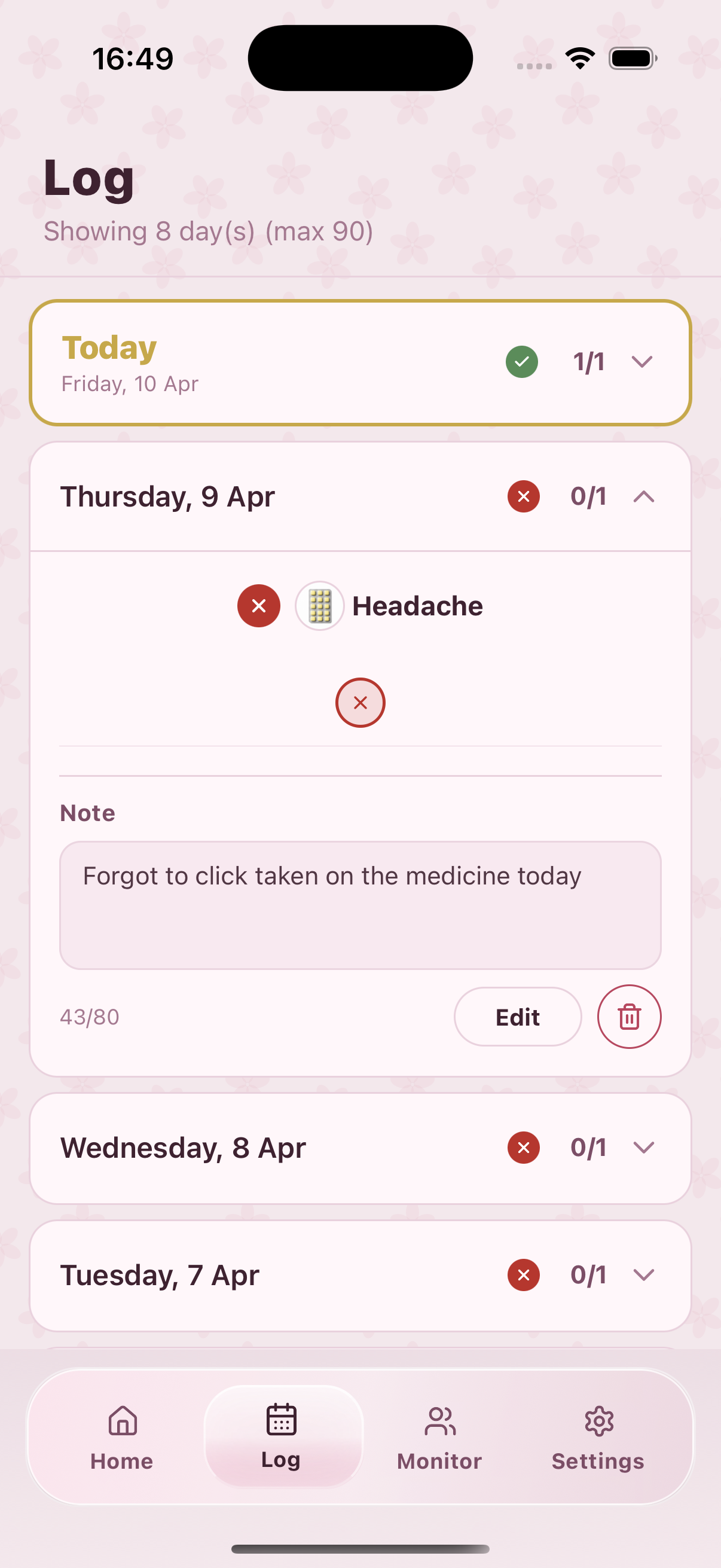
- Open the past day's card and check the notes section for the days when you did not take a dose (✕) or took a partial dose (—).
- If you enter and save a memo, you can look back on why you couldn't drink it later.
- You can delete notes that are no longer needed.
For example, even if you later change from 2 times/day to 4 times/day, past days will still be displayed 2 times, and only the new date will be displayed 4 times.
Past records will not appear to increase later.
Premium version:You can check records for the past 90 days.
6. Monitoring sharing
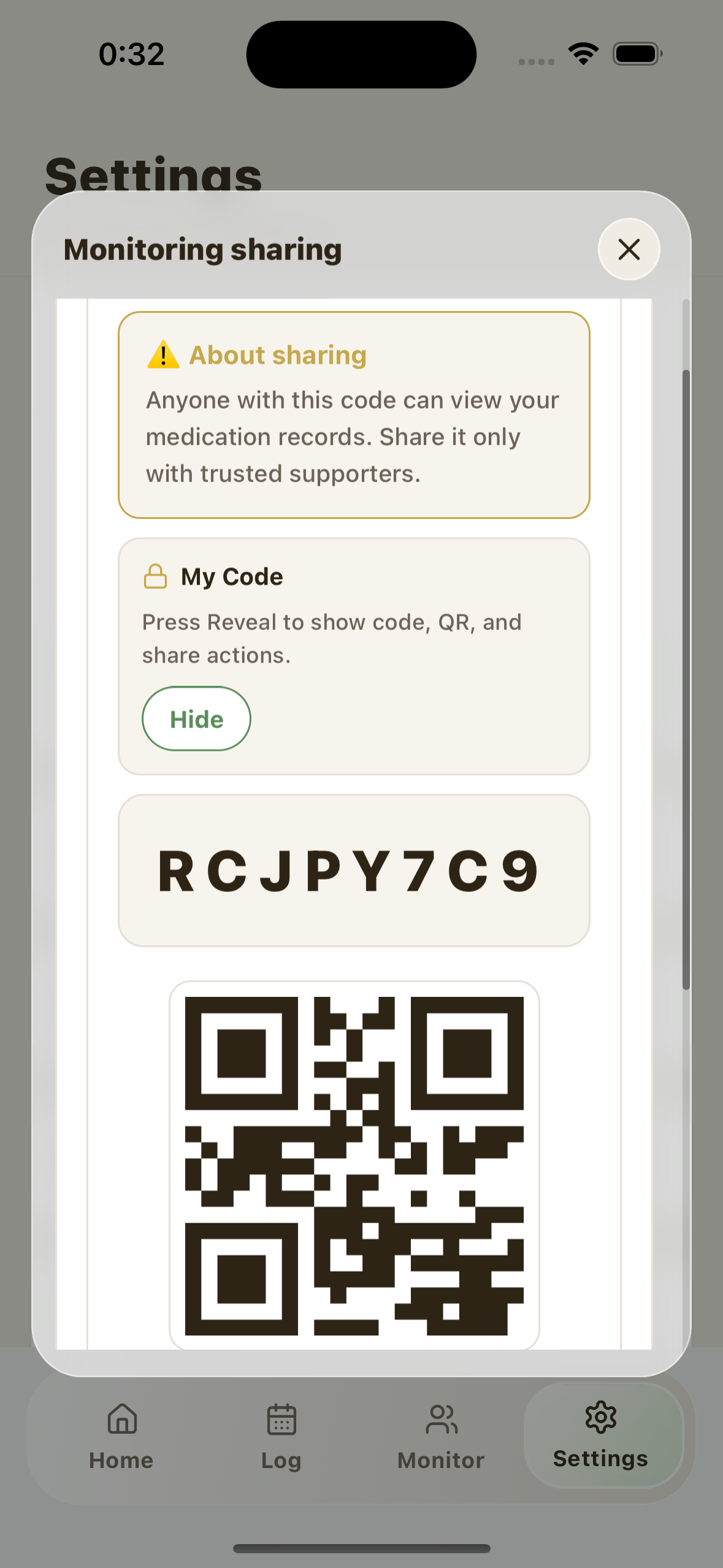
- Open the "Settings" tab and check the "Share my code" section.
- An 8-digit shared code will be displayed. This is the code you will pass on to your family.
-
Quick share:Up to three shared app icons will be displayed in order of priority among installed apps. Tap the icon to start sharing in that app.
More:The "More" button opens the device's sharing menu and allows you to select other apps and copy functions such as LINE / WhatsApp / Telegram / Signal / Email.
QR code:A QR code will also be displayed below the code. You can also read it on your family's smartphone.
- Open the "Settings" tab and check the "Enter your family's code" section.
- Enter the code your family member gave you and tap the "Confirm" button.
- You can check your family's medication status by opening the "Family" tab from the menu at the bottom of the screen.
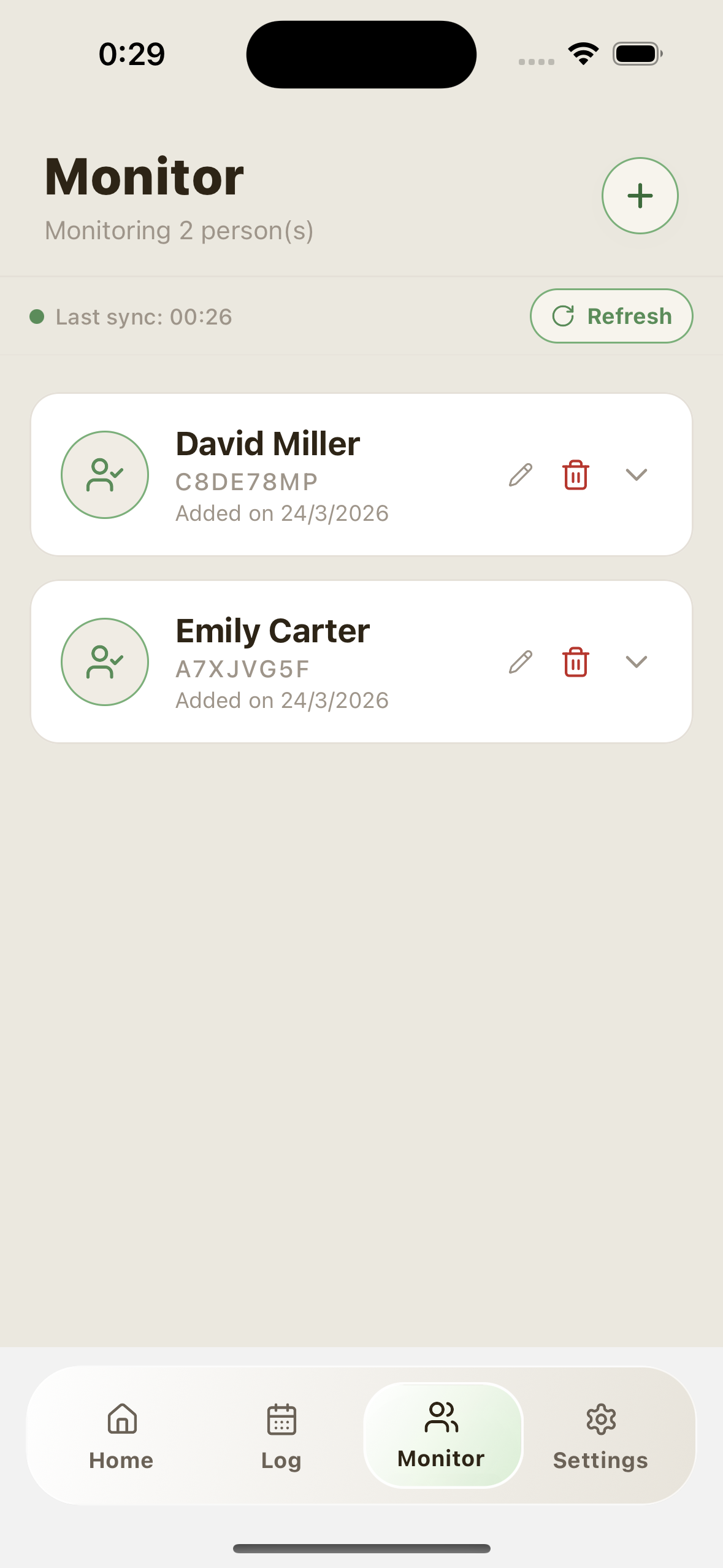
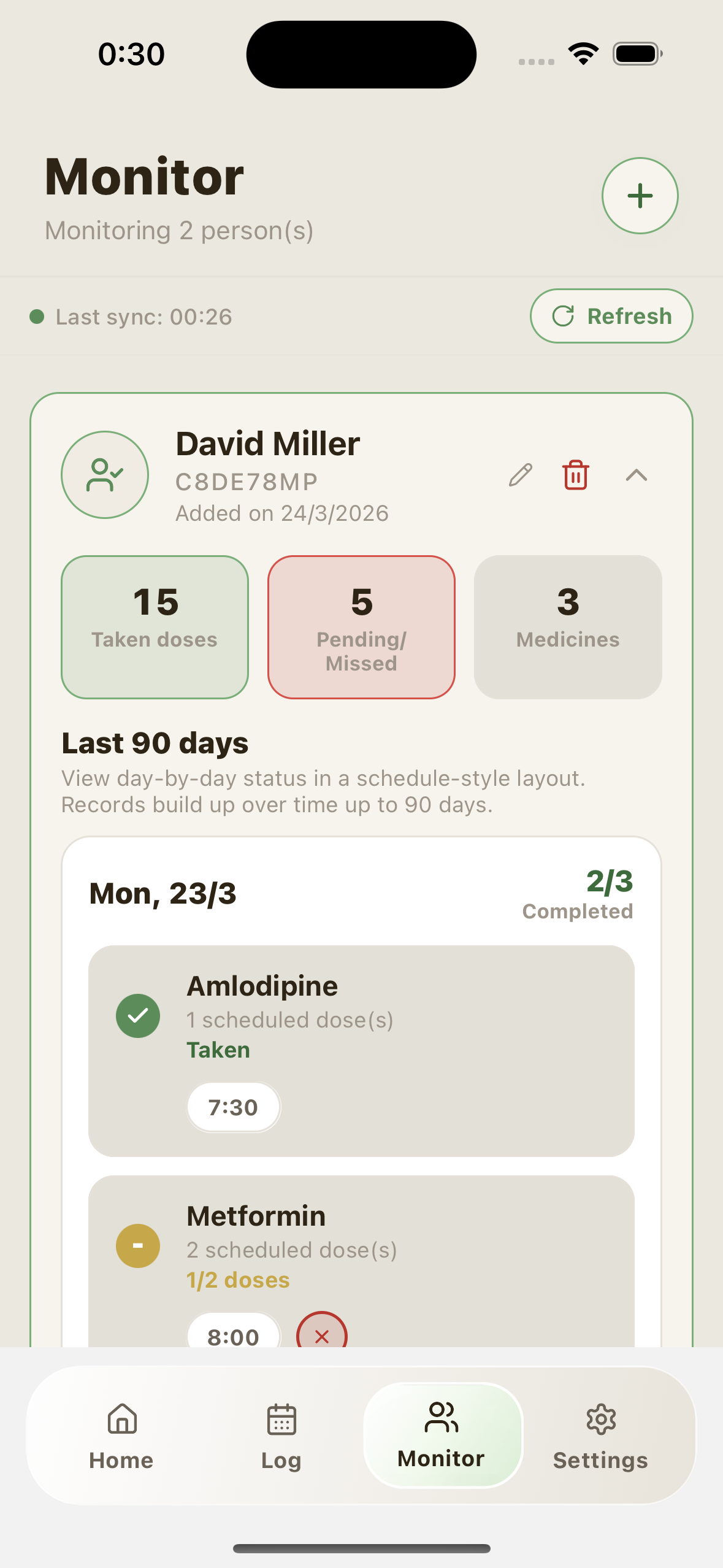
- When you open the target user's card in the Family tab,"Receive notifications"You can check the switch.
- This switch can be toggled on a per-target user basis.
- Notification reception settings are saved for each target user.
If you turn on the reception setting, it will be easier to check medication updates for target users through notifications.
Notifications will be sent individually for each target user to the monitoring device whose reception setting is ON (if multiple people are watching the same person, they will be sent to each one).
"I drank!" and "Cancel" within 30 minutes are treated as separate updates, so if you operate both within a short period of time, you may receive two notifications.
Devices that have been deleted from the monitoring list will no longer receive monitoring notifications. To receive, permission for Kusuri Memo notifications is required on the monitoring device.
Each slot is correctly displayed by date as "Dose time / Not taken (✕) / Not yet taken (—)".
This protection is intended to reduce the burden caused by incorrect operations or repeated hits, and to enable stable status confirmation.
Click the "Reissue code" button to issue a new code. Please inform your family of the new code as the old code will no longer be valid.
If reissued 5 times within 10 minutes, there will be a 30 minute cooldown.
During the cooldown, reissue operations are temporarily disabled and the remaining time is displayed.
- Quick share icon / Sharing from More (when biological protection is ON)
- Reissuance of shared code
- View recovery key
7. Notification settings
When you turn on notifications, notifications will be sent to your smartphone at the set time.
- Open the Settings tab and expand the details of the medication you want to set up notifications for.
- Tap the "Notifications" switch to turn it on (green).
- Enter the time in the "Notification time" field. (Example: 08:00, 21:30)
- Your settings will be saved automatically.
- If you see "Notifications disabled" in red at the top of the settings screen, app notifications are turned off.
- Tap the "Enable notifications →" button to open the smartphone settings screen.
- Please change the Kusuri Memo notification to "Allow".
- When you return to the app, it will say "Notifications: On".
- If you have paired your Apple Watch but are not receiving notifications, check if Kusuri Memo's notification mirror settings are enabled in your iPhone's Watch app.
If you take a medication multiple times a day, you can set a notification time for each dose. For example, you will receive notifications at different times, such as morning (08:00), afternoon (13:00), and night (20:00).
8. Appearance & Accessibility
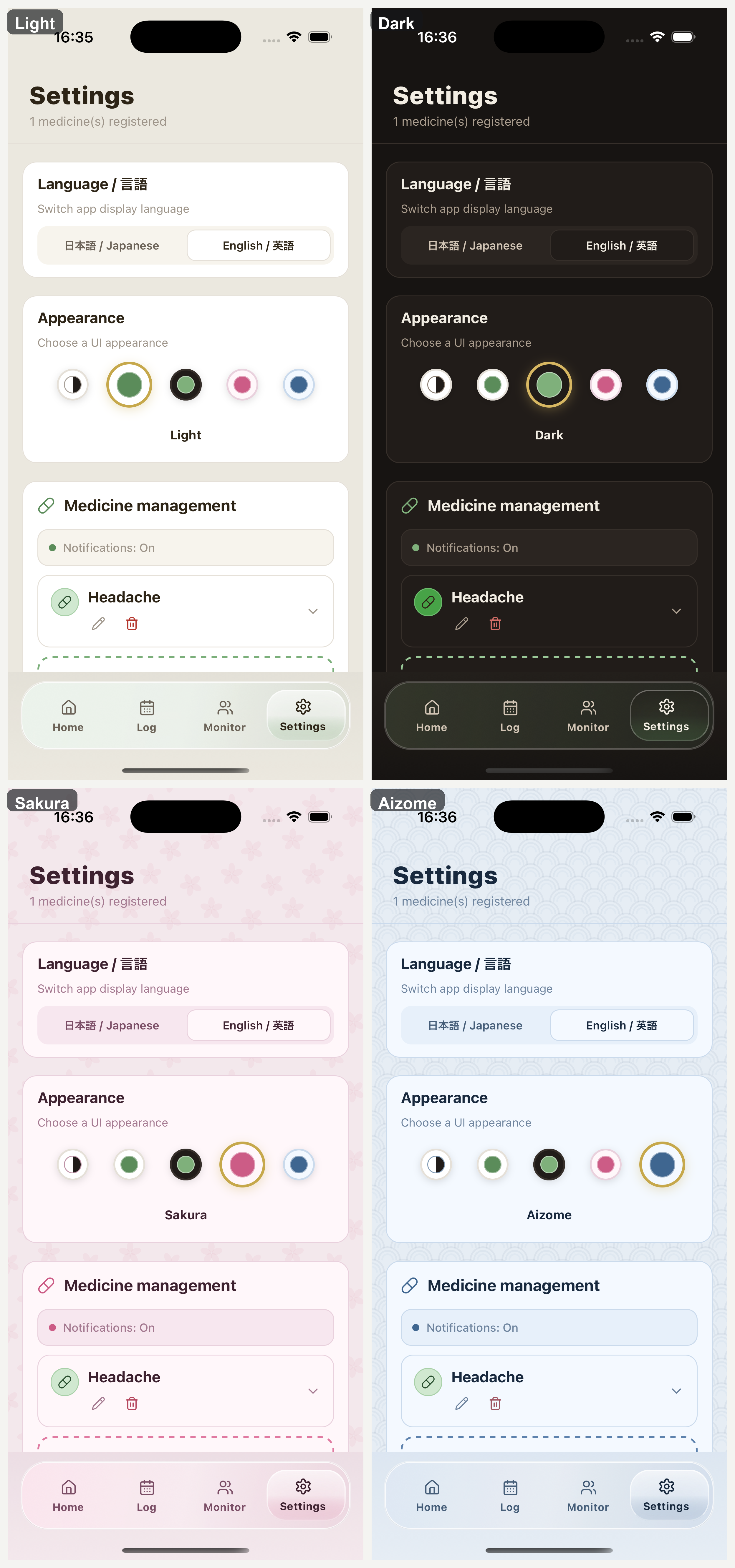
- From “Appearance” on the “Settings” tab,System / Light / Dark / Sakura / Aizome You can choose.
- If you select "System", the display settings of the iPhone/Android device will be automatically followed.
- Sakura / Aizome is available for premium. If premium is disabled, you will be reverted to the free theme.
- If you fix Light/Dark, it will be applied uniformly to all tabs in the app (Home/Log/Monitor/Settings).
- Open the Settings tab.
- In the "Language" section Japanese or English Select.
- The change will take effect immediately. No reboot required.
Kusuri Memo follows iPhone/Android's large font settings and automatically adjusts the home screen display to maintain ease of use even at large display magnifications (up to 300%).
- Normally: Medication buttons are displayed in a grid.
- When using large font size: Automatically switches to "Focus Mode" which displays medicines one by one in a larger size. The buttons and operation area have also been enlarged, and you can move to another medicine using the switching menu by swiping left or right.
Accessibility display uses a special design (margins, button size, switching UI) that prioritizes visibility.
This setting can be adjusted by going to "Settings" → "Accessibility" → "Larger Font" on iPhone, or "Settings" → "Accessibility" → "Font Size (or Display Size)" on Android (the notation may differ depending on the model). No manual switching is required on the Kusuri Memo side.
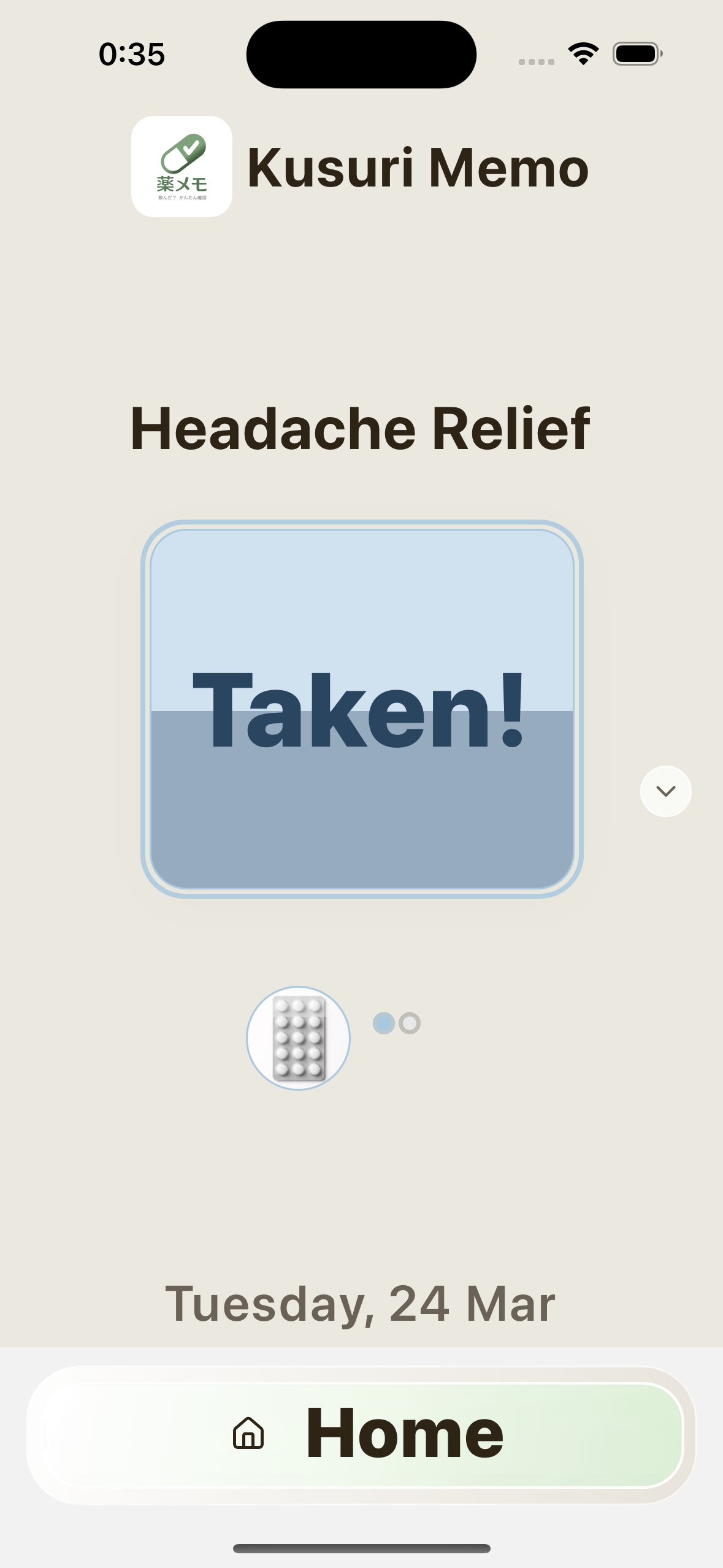
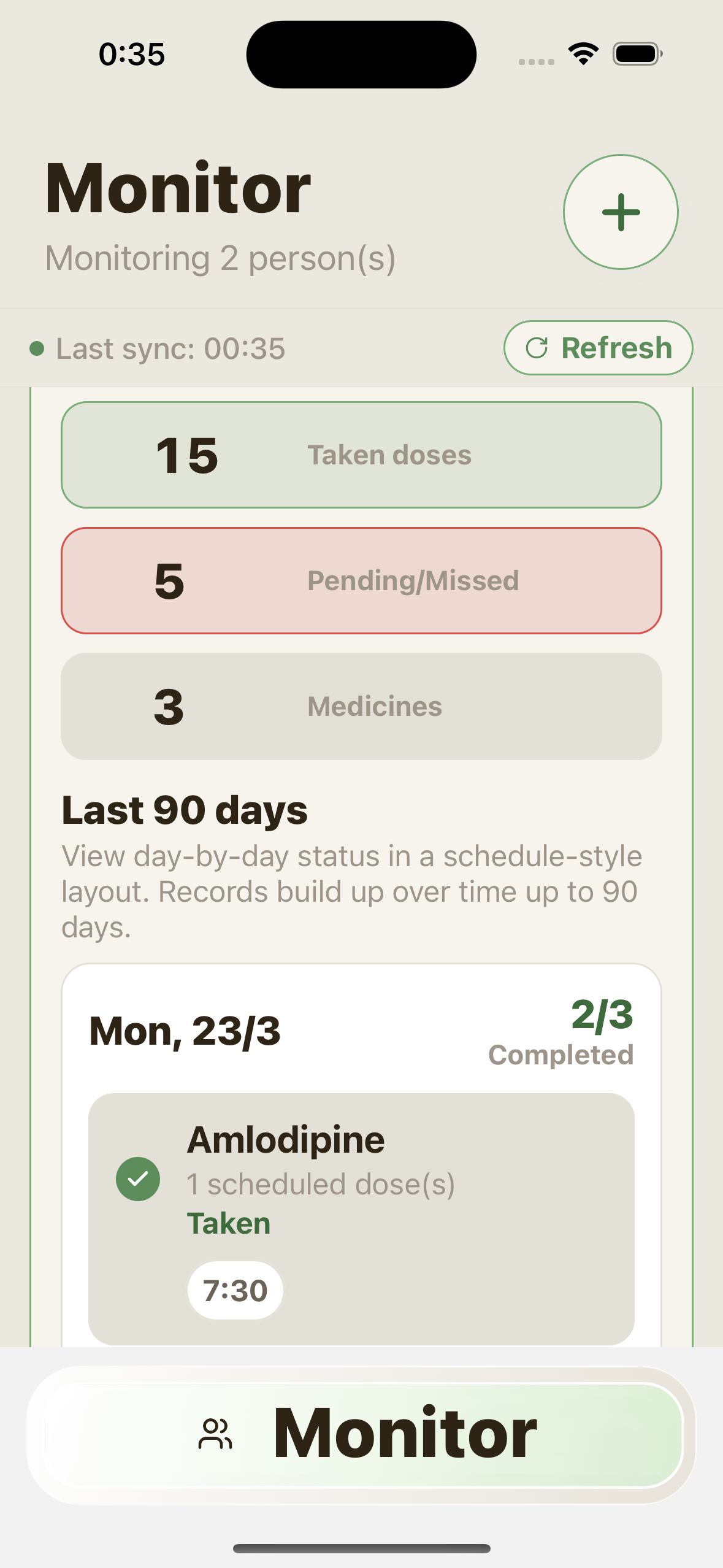
With Premium, you can customize the medicine button by combining its color and shape.
9. Premium
| Function | Free | ★ Premium |
|---|---|---|
| Number of registered medicines | Up to 1 type | unlimited |
| Medication record (daily) | ✓ | ✓ |
| Cancellation (within 30 minutes) | ✓ | ✓ |
| Notification/Reminder | ✓ | ✓ |
| Display mode (System/Light/Dark) | ✓ | ✓ |
| Accessibility display (optimized for large fonts) | ✓ | ✓ |
| Registration of medication photos | ✓ | ✓ |
| Checking medication records | Past 7 days | Past 90 days |
| Number of doses per day (multiple times) | — | 1-12 times |
| Button design change (shape/color) |
— | ✓ |
| sharing with family (Code issued) |
— | ✓ |
| View family records (Enter code) |
✓ | ✓ |
- When you tap a premium feature on the settings screen, a registration screen (paywall) will be displayed.
- Check your plan and tap the "Sign up for Premium" button.
- Payment confirmation for your Apple ID or Google account will be displayed. Please check the contents and complete your purchase.
- After completing registration, you can immediately use premium features.
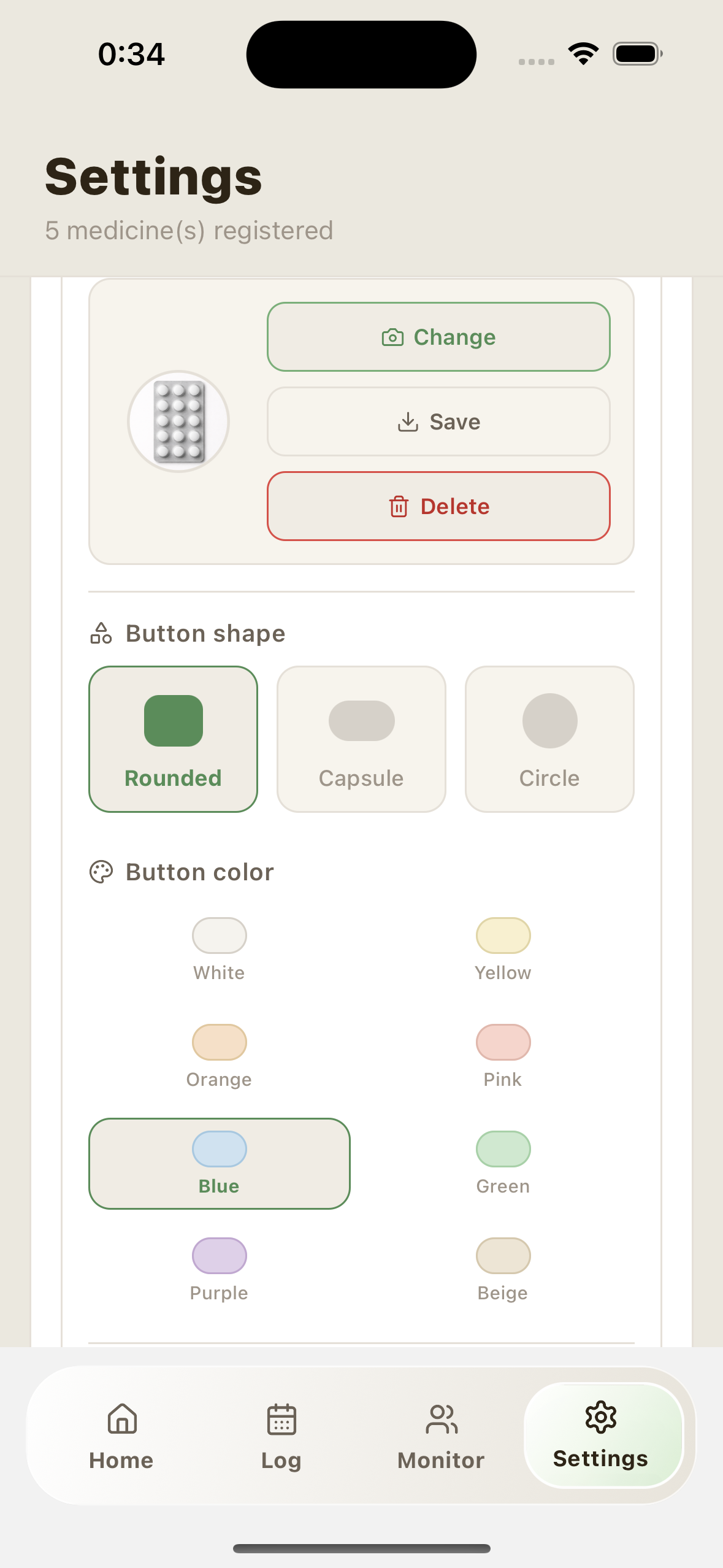
After purchase confirmation Terminal setup A screen will appear. Here, select how far you want to enable cloud functions on this device.
- first "Cloud function (monitoring sharing/account protection)" A toggle will be displayed (default OFF at first setup).
- Leave it OFF "Complete with these settings (restore is disabled)" Press to complete the setup. Premium is enabled, but cloud monitoring sharing and account protection restoration remain disabled.
- If you turn it on, you can enable the cloud functions of monitoring sharing and account protection all at once.
- This setting will be added later. Settings → Support You can change it at any time.
If you turn it off, consent will be withdrawn and cloud monitoring/sharing/account protection cloud processing will stop.
You can continue to use your medication records on your device.
Cancellations can be made from the settings screen of your app store (App Store or Google Play).
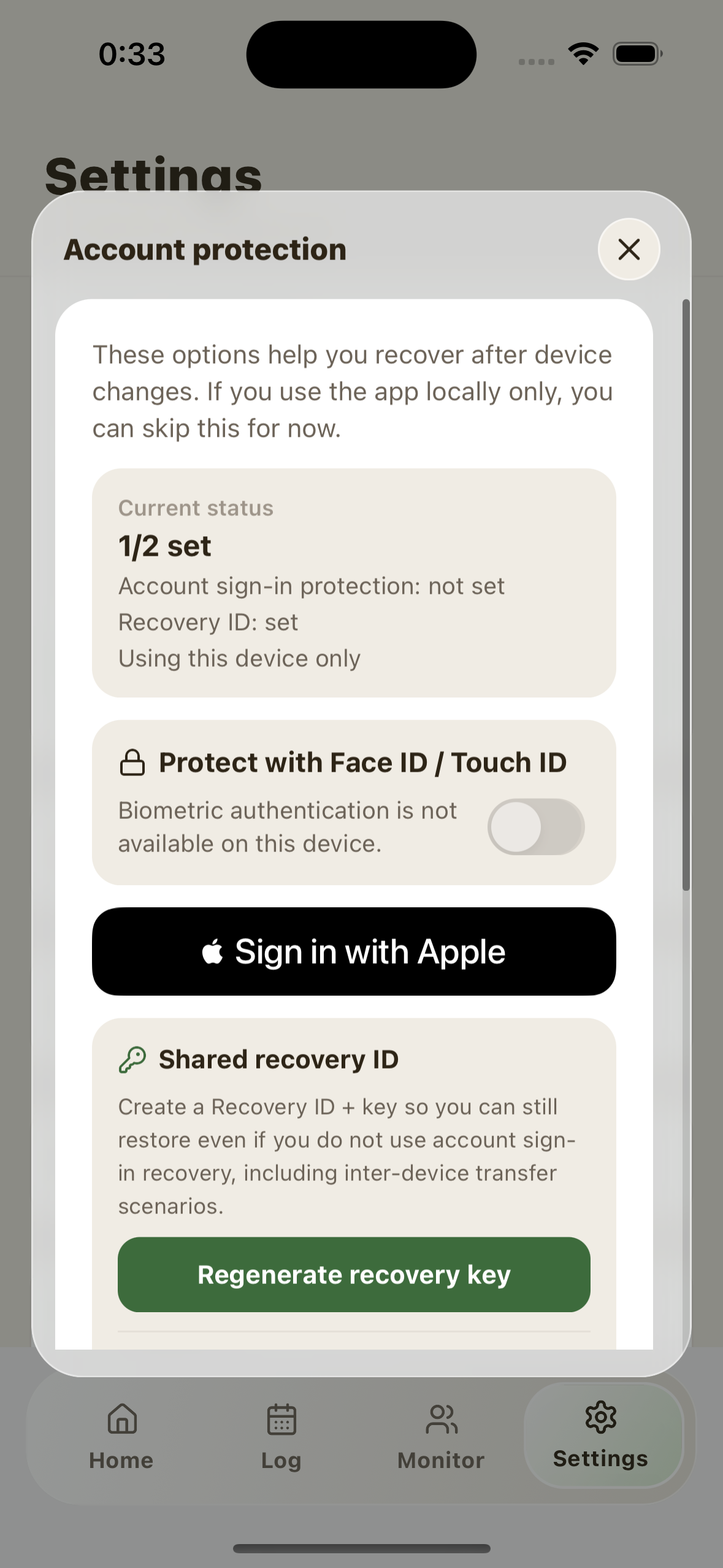
Owner information for Kusuri Memo's premium privileges and sharing features is stored in a secure area on your device. To restore your information when you change devices or reinstall apps, we strongly recommend that you set up account protection in advance.
There are platform-specific integration methods and common restoration methods:
- Apple integration (recommended for iPhone): Collaborate securely using your Apple ID. If you are using an iPhone, this is the easiest method. Please select "Link with Apple" from "Account Protection" on the settings screen.
- Google integration (recommended for Android): Collaborate securely using your Google account. If you are using Android, this is the easiest method. Go to "Account Protection" on the settings screen and select "Enable protection with Google".
- Common restore ID + restore key: This is an alternative method when not using Apple integration or Google integration. An ID and key will be issued from the settings screen. The key will only be shown once, so be sure to keep it in a safe place.
Invalid inputs are counted as `x/5` and 5 times within 10 minutes will lock for 30 minutes.
While locked, the restore input field is disabled and the remaining time until the end is displayed.
Once the restoration is completed on the new device, the old device is designed to automatically return to new user status. Therefore, it is usually not necessary to "manually switch the priority terminal" or "manually cancel the old terminal".
- Check your premium status on your new device, then open Account Protection in Settings.
- Restore with the same Apple account on iPhone and the same Google account on Android.
- If platform linkage cannot be used, restore using "Common Restore ID + Restore Key".
- After restoration, premium status, sharing functions, and drug data will be reflected on the new device. The old device will automatically revert to new user status.
10. Scenarios and troubleshooting
- Personal use:Record your morning and evening medications and supplements to reduce worries about whether you have taken them.
- Monitoring use:Family members who live far away check the situation on the monitor.
- Hospital visit assistance:Show the log screen at the time of consultation and share your medication history.
- Nursing care/facility operation:Used in nursing facilities, home care, and clinics to check medication records with the patient's consent.
- Medical cooperation:At hospitals and clinics, share your personal records with doctors and nurses to check your medication status (operation with the patient's consent).
- Short-term intensive management:Intensive tracking of medication for a certain period of time, such as after surgery or when starting new treatment.
Shared code is not displayed (code issuer)
If the problem persists, follow the instructions on the same screen to restore your existing account using "Account Protection" (Apple/Google or restore ID + key) and try again.
"This shared code is currently unavailable. Please ask the other party to re-share a new code." is displayed (on the monitor side)
If it still fails, please ask the code issuer to re-share the latest code (old code will no longer be valid after re-issuance).
If the cooldown occurs due to repeated invalid inputs, wait until the remaining time is displayed and try again.
Restore shows "Invalid attempt"
The screen will display the number of invalid inputs (`x/5`). If you fail 5 times within 10 minutes, you will be locked for 30 minutes, and the input field will remain disabled during that time.
Monitor screen updates are slow/some parts are outdated
If it does not appear the first time, please wait 10 to 20 seconds and try again. A validation check will run when re-updating, and the delay may catch up.
After changing the model, the display on the old terminal is different from expected
If the update is slow, restart the app on the old device and reload the status.
Charges continue even after account deletion
Please cancel separately in the App Store/Google Play subscription settings.
11. FAQ
What if you press the wrong medicine?
Will my data be deleted if I delete the app?
If account protection has been set, you can restore medication definitions, medication logs, and monitoring list (code/display name/addition date/time) by restoring encrypted backup.
Is there a fee for my family to enter the code?
Will my data be lost if I cancel my subscription?
Where are the photos saved?
Can I transfer my data when changing models?
For iPhone, use Apple linkage, and for Android, use Google linkage. If neither is available, please restore using restore ID + key.
After the restoration is complete, the premium status, sharing function, and drug data will be reflected on the new device.
What if someone you don't know sees your shared code?
How many times can I update the monitoring page?
This restriction is a safety measure to reduce the load caused by continuous updates and temporary communication errors, and to maintain a stable monitoring display.
Can I receive notifications for multiple medications at different times?
Can I change the name of my medication later?
I want to remove my medication, what should I do?
12.Privacy policy
Last updated: April 3, 2026
Thank you for using Kusuri Memo (hereinafter referred to as the "App"). This Privacy Policy describes how we collect, use and protect your information.
This app stores the following information locally on your device:
- Name of registered medicine, dosing schedule, and dosing record
- Notification settings
- subscription status
- Photo of medicine (save only on device)
In normal free usage, medication details and medication records are managed within the device. Only when using server functions, we will send the minimum amount of data necessary to provide the functions.
If you use the Watch Sharing or Account Protection Restore features, the following information may be sent to Supabase (database service):
- shared code
- name of medicine
- Date and time of taking
- Dosage status
- Encrypted backup for restoration (code/display name/addition date and time of medication definition, medication log, and monitoring list)
Monitoring shared data is used only for the purpose of providing monitoring functions. Backup data will be used only for the purpose of ensuring safety during restoration and migration. Photo data is not sent to an external server.
Internal identifiers and status information may be created and maintained on the server side for subscription integration and family sharing/protection functions. These do not include photos of the medication or the dosage itself.
The production database is operated on Supabase in Japan (Tokyo region).
For disaster recovery, server-side data is periodically updated to the standby Supabase project. The standby system is operated only for recovery purposes and follows the same access control model as the production system.
This app uses the following third party services:
Used for monitoring shared data synchronization, encrypted backup storage (including monitoring list), and cold standby disaster recovery operations. The production database is operated in Japan (Tokyo region).
Privacy policy →
Used for crash/diagnostic reports to detect and improve app defects. It may include technical information such as device information and internal app identifiers necessary for research, but is not used for tracking for advertising purposes.
Privacy policy →
This app does not use advertising SDK or third party analytics SDK. Even if we introduce anonymous usage metrics in the future (e.g. installation duration or free/paid migration trends), we will limit to a minimum of proprietary data that does not include medication intake and will update this policy before release.
This app is not intended for children under the age of 13. We do not knowingly collect personal information from children under the age of 13.
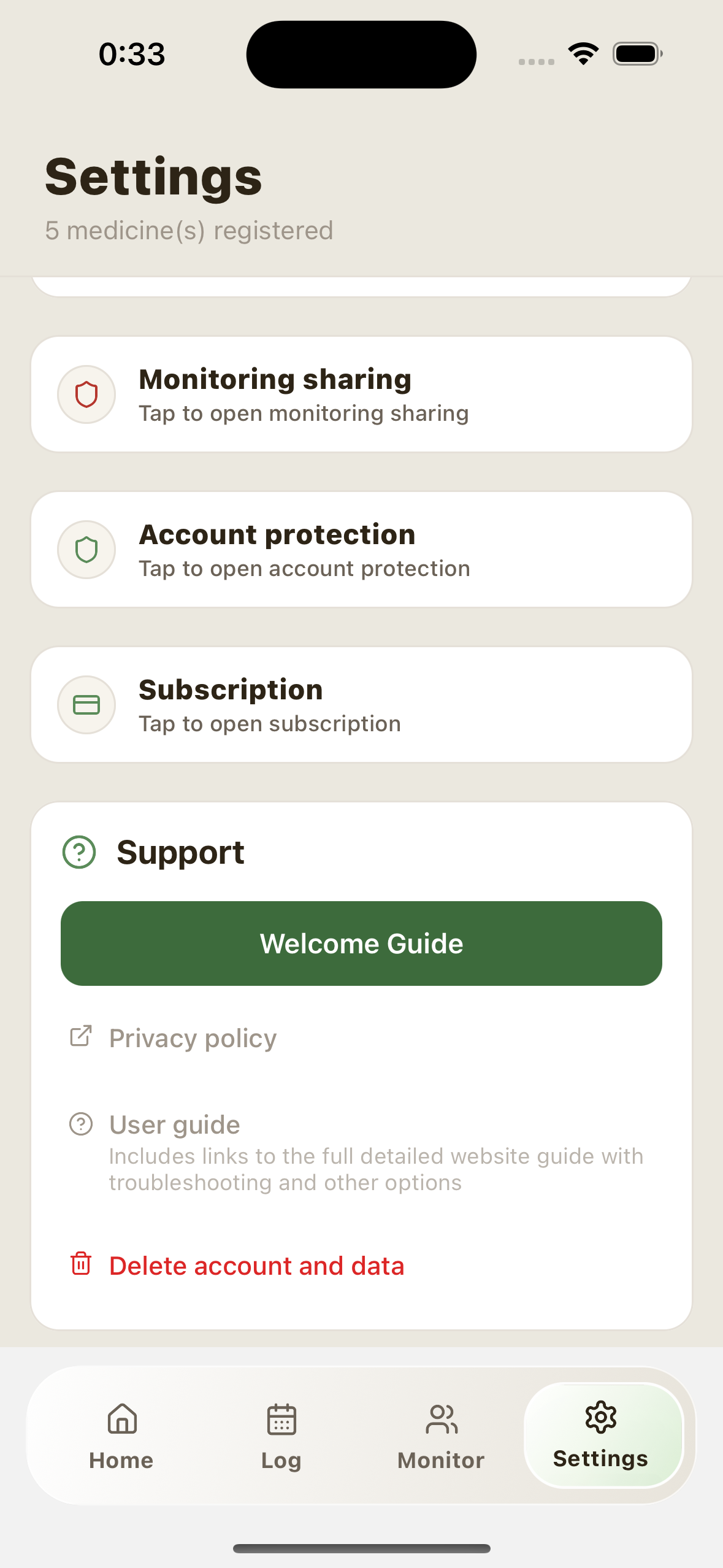
You can permanently delete all data from the account deletion function within the app (Settings → Delete account and data).
If you delete your account, we only retain a pseudo-anonymized identifier and confirmation date and time for five years to prove that you have confirmed the deletion twice. No medication information, medication records or other personal data will be retained.
Medication photos are only stored on your device. Photo data is never sent, uploaded, or shared to external servers.
We take appropriate technical measures to protect your data. Family sharing data is transmitted over an encrypted connection.
We may update this privacy policy. If there are any changes, we will notify you through an app update.
If you have any questions regarding privacy, please contact us via the support email on the settings screen.
13.Contact
If you have any questions or requests, please feel free to contact us using the form below. We will respond as soon as possible.
Please contact us by email.
*If you also let us know the version of the app and the type of device you are using (iPhone/Android), we can respond more quickly.
Privacy policyherePlease take a look.